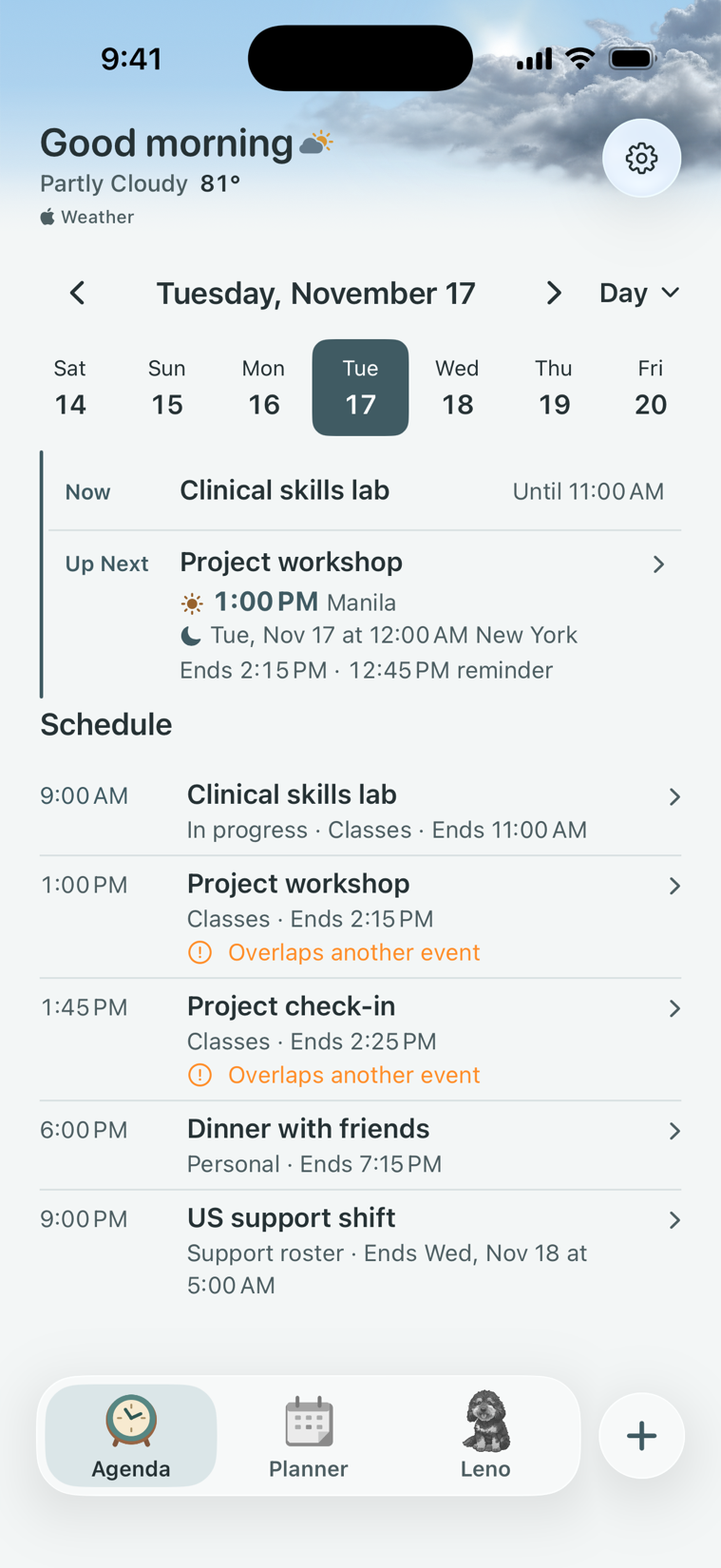
Start with Now and Up Next. Switch between Day and Week, choose a list or grid, and spot overlapping shifts, classes, or appointments.
See Apple Weather above your schedule. Pick a city or use your approximate location. Once downloaded, up to ten days of hourly forecasts are available offline.
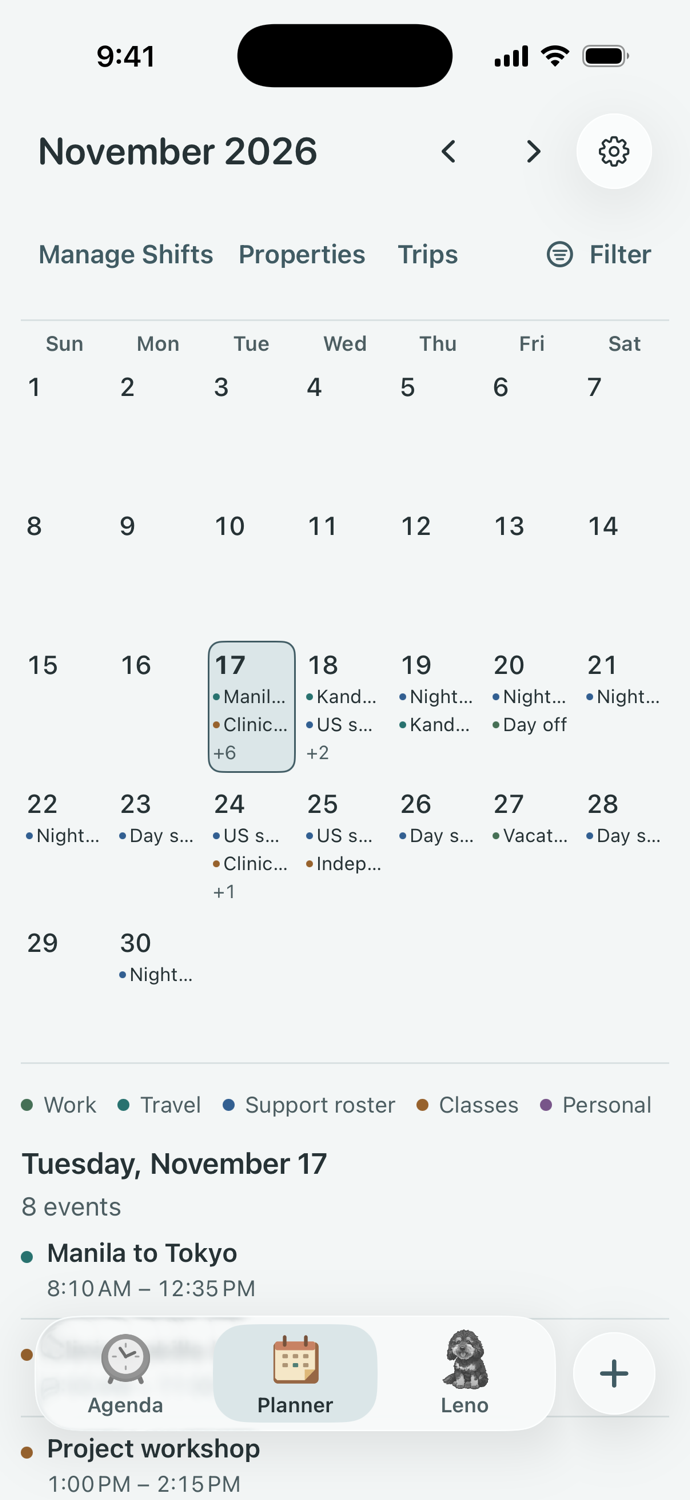
Get a view of the month.
See busy days at a glance, filter by category, or tap a date to see what’s on. Open Manage Shifts to edit a roster or mark a shift as time off.
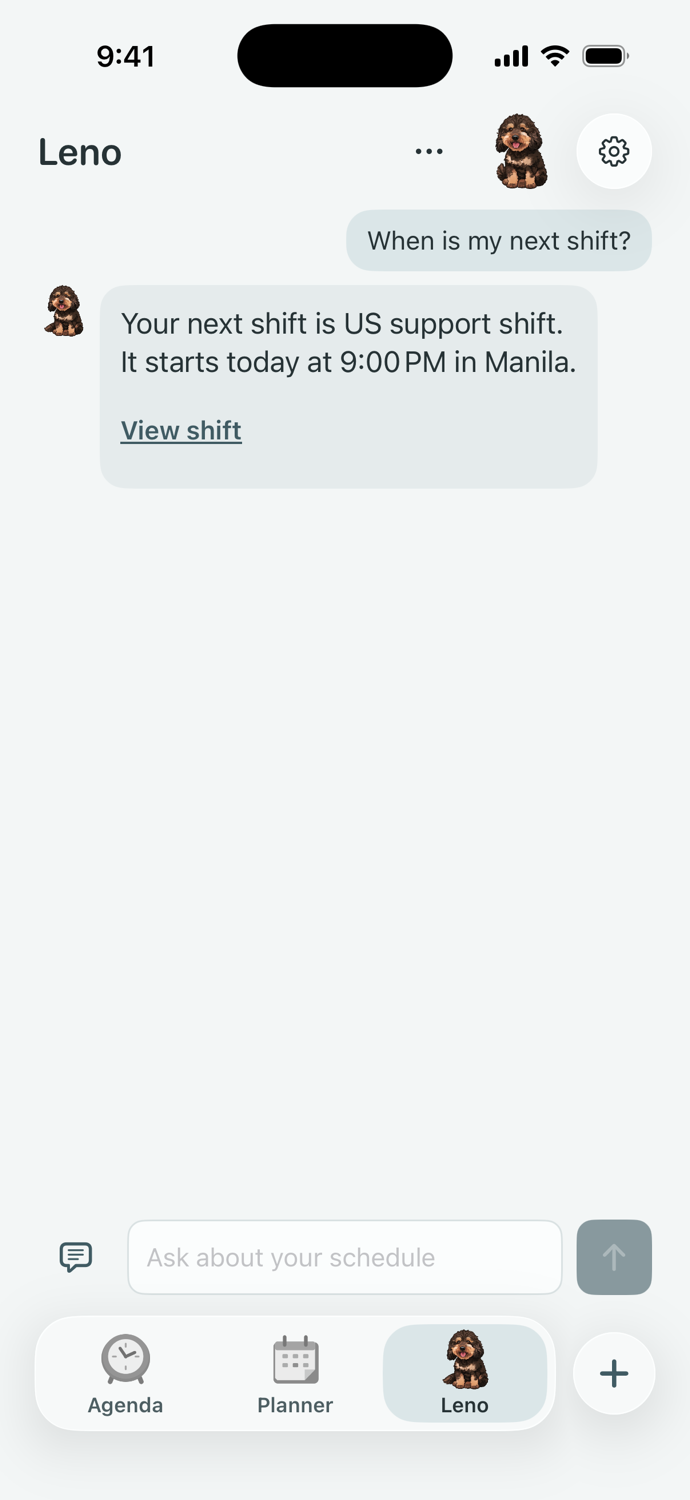
Ask Leno about your schedule.
Find your next shift, check a reminder, or ask Leno to draft an event. Review the draft before saving. Supported requests can use Apple Intelligence on compatible devices.
One shift, two time zones.
Choose local and work time zones. If your next shift falls on a different date in the other zone, Shift shows that date alongside the time. Turn on alerts for clock changes that affect your shifts.
US support shift
Manila
9:00 PM
New York (winter)
8:00 AM
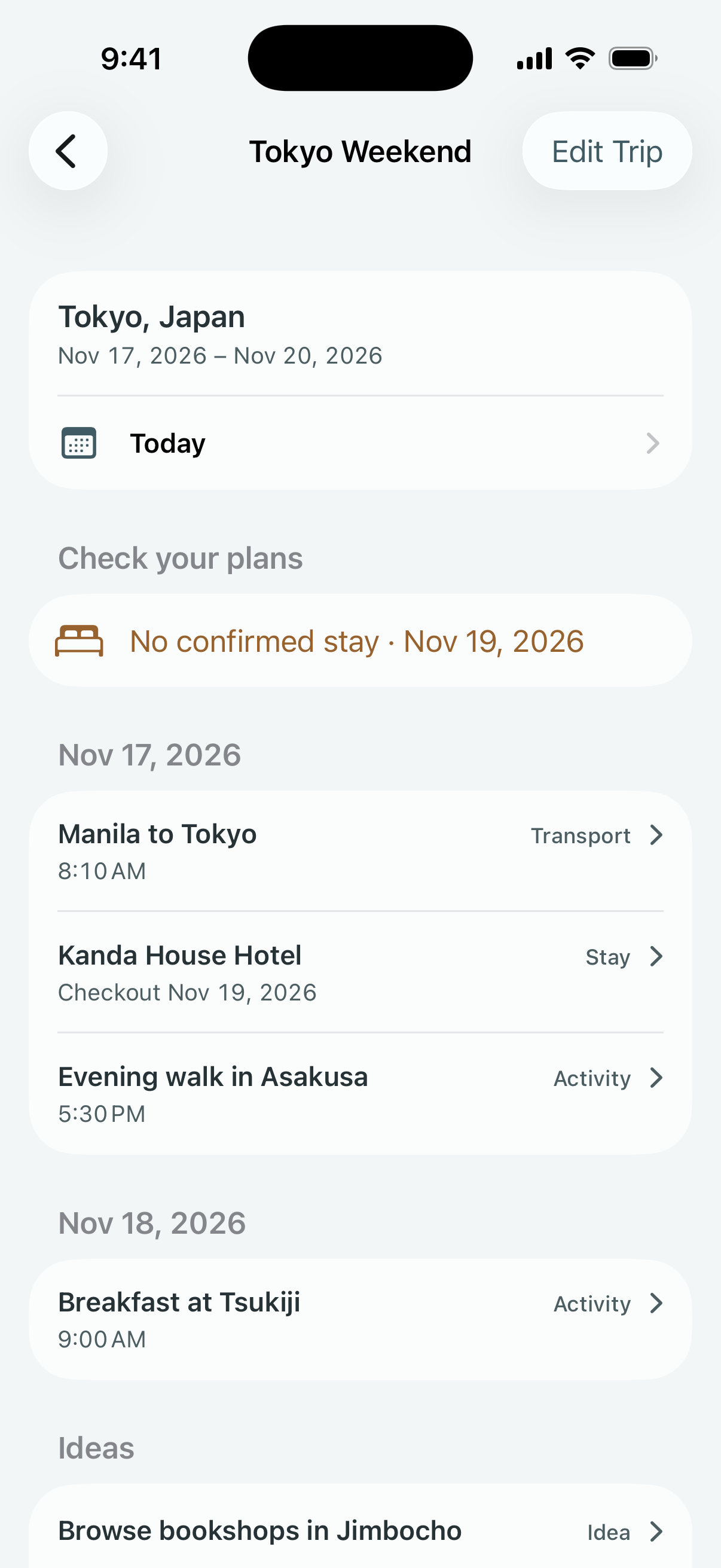
Plan a trip or a property turnover.
Trips
Keep transport, stays, activities, and ideas in one itinerary. Open Today for the day’s plans, see departure and arrival times in their own zones, and spot overlaps or nights without a confirmed stay.
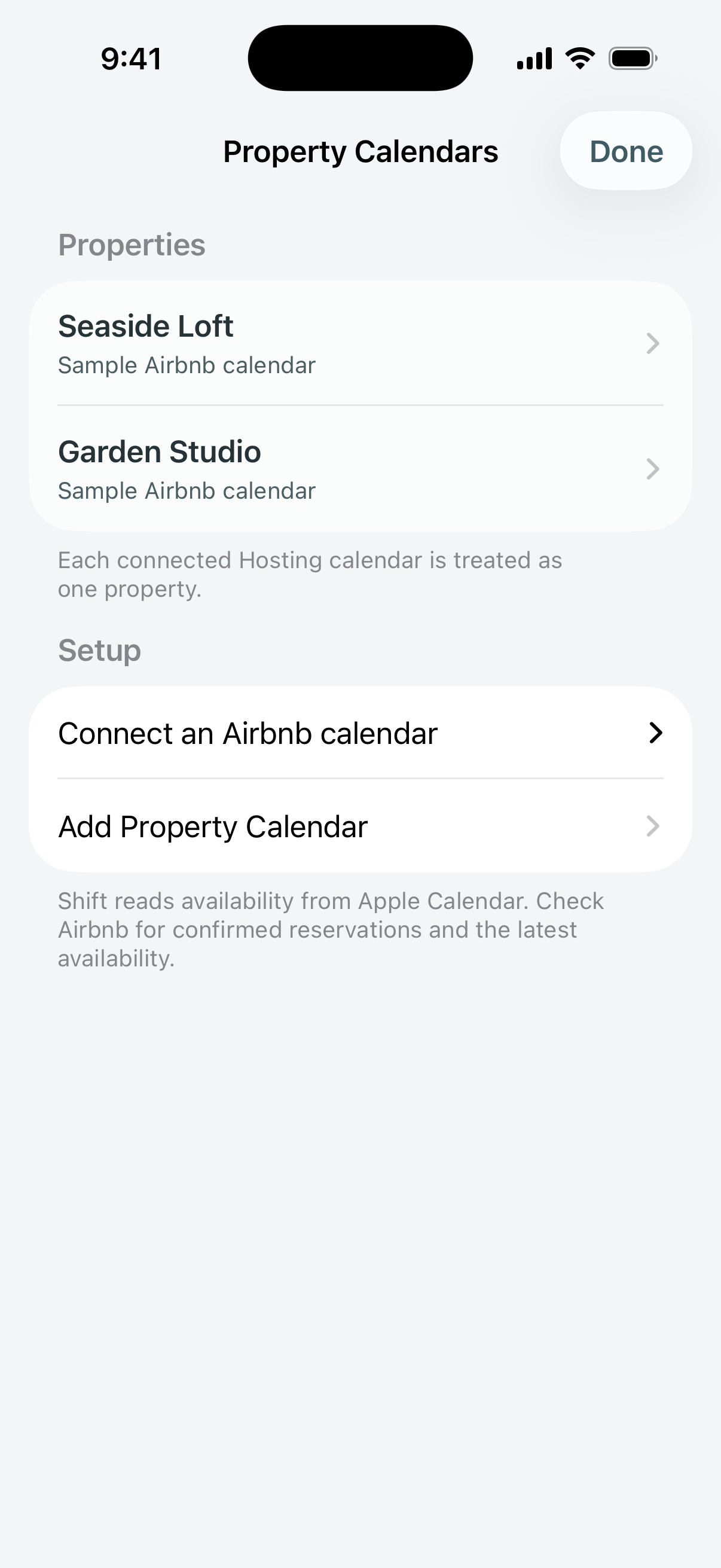
Property Calendars
See when each property is unavailable and keep track of turnover tasks. Connect a hosting calendar through Apple Calendar to bring its availability into Shift.
Keep your schedule in view.
Home Screen widgets
Add Up Next, Now & Next, Upcoming, or Shift Week. Choose a roster and display it in local or work time with Shift Week.
Connected calendars
Show events from the Apple calendars you choose alongside shifts and classes. The original calendar entries stay as they are.
Shift by Mneme support
Get help with calendars, reminders, or your schedule at admin@offnotes.pro.
Moon imagery adapted from NASA's Scientific Visualization Studio, CGI Moon Kit, using Lunar Reconnaissance Orbiter imagery. Shift adds projection, phase shading, and glow. NASA does not endorse Shift.
 Shift by Mneme